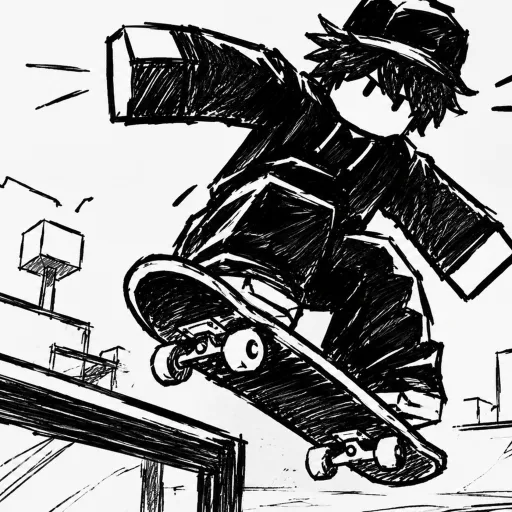
Best Skate Tree settings: controller setup, camera and landing options, plus the performance mode players mention for smoother frames on Roblox.
Skate Tree Best Settings: Controller, Camera and FPS
The single most important Skate Tree setting is not a slider — it is your input device. The official game description says it outright: "For the optimal experience, play on controller." After that, camera behavior, the game's performance mode option reported by players, and Roblox's own graphics settings decide how cleanly you land tricks.
- Controller first — the developer's own top-of-page recommendation
- Flick input — tricks come from flicking the stick in different directions
- Performance mode — players report a setting exists in-game; verify in your build
- Keyboard works — but in-game prompts are the final authority, not any guide
- Roblox fallback — client graphics settings cover what the game menu does not
Play on Controller: The Official Recommendation
Skate Tree's Roblox page opens its description with a warning emoji and one line: "For the optimal experience, play on controller." That is the developer telling you directly how the game is meant to be played, and it lines up with how the trick system works — GamesRadar's coverage explains that "you'll need to flick the controls in different directions to pull off various tricks and moves," which is what analog sticks do natively and keyboards approximate.
Official source: Skate Tree on Roblox — the official description carries the controller recommendation verbatim, ahead of even the EA non-affiliation notice.
The practical difference shows up in two places. Flick-based flip tricks depend on the angle and speed of your stick motion, so an analog stick gives the game more information to work with than four arrow keys. And landings punish camera chaos — a controller's right stick lets you hold your view steady through a spin while your left hand does the trick, which is harder to split across mouse and keyboard mid-air.
| Input | Flick tricks | Camera mid-trick | Developer note |
|---|---|---|---|
| Controller | Native analog flicks | Right stick, independent hand | Recommended for optimal experience |
| Keyboard | Digital directions only | Mouse or arrows, shared hands | Works; in-game prompts are the authority |
If you only have a keyboard, the game is still playable — the fan-run Skate Tree community wiki reports the standard Roblox keyboard scheme (WASD movement, space to jump, mouse camera, R to reset) applies, but it labels that as inference. Open the game and read the on-screen prompts; those are the truth, not a table on any website, including this one.
Camera and Landing Behavior
Camera settings decide whether you can actually see your landing, and in a game built around clean-landings scoring — the core of Spot Battles, our spot battles guide covers the rules — that is performance-critical. The community wiki describes the standard Roblox camera as the baseline: mouse-look on PC, with controller camera on the right stick. No tracker has published a Skate Tree-specific camera options menu, so assume the default Roblox camera behavior unless your build's menu shows otherwise.
Three habits do more than any setting. First, keep your camera speed slow enough to hold a line through a spin — fast sensitivity feels responsive until you overshoot your landing spot mid-flip. Second, reset with R (keyboard) or the mapped reset when you bail into geometry instead of fighting a bad angle. Third, approach spots with the camera already behind you; mid-trick camera work is recovery, not setup.
The one camera-adjacent claim this guide will not state as fact: the exact list of camera or landing options inside Skate Tree's own menu. No authoritative source documents that list as of October 13, 2026. Open the in-game settings screen once and you will know more than any article can currently tell you — and if you find documented options, the controls guide is where they belong.
Performance Mode and Frame Rate
Frame rate in a trick game is not cosmetic: input timing and landing reads get cleaner the smoother the game runs. A TikTok clip by @nixleton, posted around October 12, 2026 and sitting near 9,600 likes, surfaces a player comment stating "there's a performance mode setting in this" — player-reported evidence that Skate Tree ships a performance mode toggle.
The claim comes from TikTok comments, not an official patch note or description. Load the game, check its settings menu, and the toggle will confirm or deny itself in seconds. Treat any article that presents it as official fact as overconfident.
Official source: TikTok @nixleton on Skate Tree — the clip where the performance mode discussion appears in replies.
What the mode almost certainly does, based on how Roblox performance settings generally behave: reduce visual flourishes in exchange for a higher, more stable frame cap. What it definitely does in Skate Tree specifically: unconfirmed beyond the toggle's existence. The community wiki's cross-platform claims (PC, mobile, Xbox and PlayStation all supported) are also single-source and unverified — test on your own hardware before trusting a platform list.
Roblox Client Settings: The Fallback Layer
Underneath whatever Skate Tree offers, the Roblox client has its own graphics controls, and they apply to every game on the platform. Open Roblox settings from the gear icon or Esc menu in-experience, and the Graphics section is your universal lever: switch graphics mode from Automatic to Manual, then push the quality slider down until frame rate stabilizes, trading texture and effect polish for responsiveness.
| Roblox setting | What it does | When to touch it |
|---|---|---|
| Graphics mode: Automatic | Client picks quality | Default; fine on strong hardware |
| Graphics mode: Manual + quality slider | You trade visuals for FPS | Stutters during trick landings |
| Reduce motion / camera effects | Cuts visual shake | Motion discomfort mid-combos |
The general order of operations for a struggling PC: in-game performance mode first (if your build has the toggle players describe), Roblox manual graphics second, and only then hardware-level tweaks. Roblox also renders differently across devices — the same settings that hold 60fps on a desktop can behave differently on a laptop iGPU or a phone, which is why "best settings" is always per-device in practice.
Keyboard, Mobile and Platform Notes
Keyboard players should not feel locked out. The fan wiki's inferred scheme matches Roblox conventions — WASD to move, space to jump, mouse to look, R to reset — and the game's on-screen prompts override every written guide. The gap is flick execution: keyboard directions are digital, so the angle nuance of a stick flick comes down to timing rather than analog sweep. Expect a learning curve on flip tricks and lean on grinds and grabs while it settles.
Mobile is the platform where settings matter most and documentation is thinnest. Touch controls plus an overheating phone plus a crowded server is the worst frame-rate case in any Roblox game, and Skate Tree is no exception. If you play on a phone: performance mode on if it exists in your build, Roblox graphics on manual low, and accept that competitive trick consistency on touch is a different skill than on a controller.
One more device note, straight from the official page: the game lists genre as Sports and runs servers of up to 12 players, per Roblox's own stats. Small servers mean less rendering load than mega-experiences, which is part of why Skate Tree tends to run light — but the canyon geometry and moving skaters still spike frame times on weak hardware mid-trick.
FAQ
Does Skate Tree have a performance mode?
Players say yes — a TikTok clip from @nixleton carries a comment confirming "there's a performance mode setting in this." No developer announcement backs it, so open the in-game settings menu and check your own build. If it is there, it is the first thing to enable on weak hardware.
Should I play Skate Tree on controller or keyboard?
Controller, per the official description: "For the optimal experience, play on controller." Tricks are executed by flicking controls in different directions, which analog sticks handle natively. Keyboard works and the game is fully playable on it — just expect flick tricks to demand tighter timing, and trust the in-game prompts over any key list online.
How do I fix lag and stutters while landing tricks?
Two layers, in order: enable the in-game performance mode if your build has it, then drop Roblox's own graphics quality (Esc menu → settings → graphics → manual). Lowering visual quality trades looks for frame stability, and stable frames are what let you read landings cleanly.
Where are the camera settings in Skate Tree?
No tracker documents a Skate Tree-specific camera options menu as of October 13, 2026. The game runs on standard Roblox camera behavior — mouse-look on PC, right stick on controller — and the in-game settings screen is the only authority. If your build shows camera options, those override everything written here.
Is Skate Tree available on mobile and console?
The fan community wiki claims PC, mobile, Xbox and PlayStation support, but that is single-source and unverified against any official listing. The safest statement: it is a Roblox experience, so it runs wherever that client runs — test your target device rather than trusting a platform table.
Related Guides
- Skate Tree controls guide — the full input breakdown these settings feed into.
- Skate Tree tricks guide — flick inputs explained for the settings you just tuned.
- Skate Tree beginner guide — first-session setup from launch screen to first landed trick.
- Skate Tree spot battles guide — why clean landings make frame rate a competitive setting.
More Skate Tree Guides
What the Skate Tree Shop sells: board skins and cosmetics paid for with Points, plus the Redeem Code shortcut at the bottom of the shop screen.
How Spot Battles work in Skate Tree: take turns setting tricks on a spot, score points for clean landings and win with consistency over risk.
Every core trick in Skate Tree: how to kickflip, heelflip, grind rails and ledges, and chain combos for higher scores and cleaner lines.